Gmail Automation: Boost Productivity & Save Time

In today's fast-paced professional world, the humble inbox has become both a vital communication hub and a notorious time sink. For executives, entrepreneurs, sales professionals, and remote workers alike, the sheer volume of emails can feel overwhelming, leading to missed opportunities, decreased focus, and a constant sense of being reactive rather than proactive. But what if you could transform your Gmail inbox from a source of stress into a powerful productivity engine? This is where the magic of gmail automation comes into play. By strategically automating repetitive tasks, you can reclaim valuable hours, ensure critical messages never get lost, and significantly boost your overall email productivity. Let's dive into how you can master your inbox and get back to what truly matters.
Understanding Gmail's Built-in Automation Features (Filters, Canned Responses, Templates)
Before we explore complex integrations or cutting-edge AI, it's essential to understand the robust automation capabilities already built into Gmail. These native features are powerful, often underutilized, and form the bedrock of an efficient email management strategy. Mastering these tools is the first step towards effective gmail automation.
1. Filters: Your Inbox's Personal Assistant
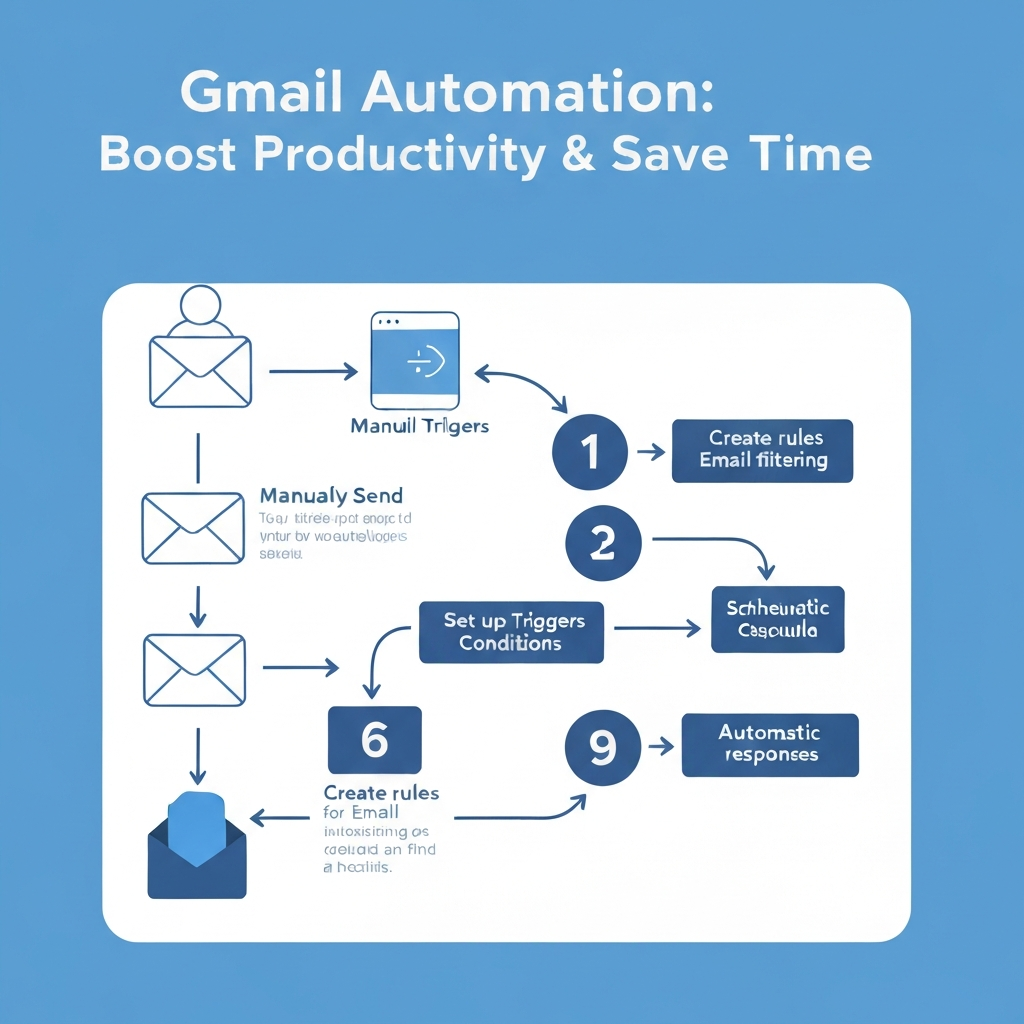
Gmail filters allow you to automatically sort, label, archive, or even delete incoming emails based on specific criteria. Think of them as automated rules that tell Gmail what to do with an email before you even see it. This is incredibly useful for:
- Organizing by Sender or Subject: Automatically label emails from specific clients, projects, or newsletters.
- Prioritizing Important Messages: Mark emails from your boss or key stakeholders as important or star them.
- Reducing Clutter: Archive promotional emails or notifications that don't require immediate attention.
- Forwarding Specific Emails: Automatically forward certain types of messages to a colleague or another account.
Setting up a filter is straightforward. You can access this feature by performing a search in Gmail, clicking the three dots at the bottom right of the search bar, and selecting "Create filter." From there, you define your search criteria (e.g., "from:[email protected]" or "subject:Urgent Project Update") and then choose the actions you want Gmail to take.
2. Canned Responses (Templates): Speed Up Your Replies
Do you find yourself typing out the same responses repeatedly? Whether it's a "thank you" for a proposal, a meeting confirmation, or an answer to a frequently asked question, Gmail's Templates feature (formerly Canned Responses) can save you immense time. Here’s how it works:
- Enable Templates: Go to Settings (gear icon) > See all settings > Advanced > Templates, and select "Enable."
- Create a Template: Compose a new email with your standard response. Once drafted, click the three dots in the compose window, go to "Templates," hover over "Canned responses," and select "Save draft as template."
- Insert a Template: When composing a new email, click the three dots, go to "Templates," and select the template you wish to insert.
This feature is a game-changer for email productivity, ensuring consistency and significantly reducing the time spent on repetitive communication. It's one of the most direct ways to automate email tasks.
Leveraging AI for Smarter Gmail Automation
While Gmail's built-in features are powerful, Artificial Intelligence (AI) takes email automation to a whole new level. AI can understand context, predict intent, and perform tasks that go far beyond simple rule-based filtering. AI-powered tools can analyze the content of your emails, not just the sender or subject line, enabling more nuanced and intelligent automation. This is where the concept of AI email tools truly shines, helping you manage your inbox more effectively and optimize your email workflow.
AI can help in several transformative ways:
- Smarter Prioritization: AI can learn which emails are most important to you based on your past interactions and the content of the message, surfacing critical communications even if they don't match a predefined filter.
- Automated Summarization: Long email threads can be overwhelming. AI can provide concise summaries, allowing you to grasp the gist of a conversation quickly without reading every single message.
- Intelligent Drafting and Response Suggestions: AI assistants can draft replies based on the context of the email you received, often requiring only minor edits from you. This dramatically speeds up response times.
- Sentiment Analysis: Understanding the tone of an email can be crucial, especially in customer service or sales. AI can help gauge the sentiment, informing how you should respond.
According to GenFuse AI, "Automating the processes around your emails can free up significant time and reduce manual errors, leading to substantial productivity gains." Tools like Magical (formerly TextExpander) are examples of how AI can assist with text expansion, but the capabilities extend much further. Auto Gmail, for instance, offers ChatGPT-powered drafting, demonstrating the practical application of AI in speeding up content creation within emails. [See 7 Best Gmail AI Assistant Tools for Enhanced Productivity in 2025](https://genfuseai.com/blog/gmail-ai-assistant) and [8 Gmail Productivity Hacks Using AI Extensions](https://autogmail.com/8-gmail-productivity-hacks-using-ai-extensions) offer further insights.
These AI capabilities are not just about efficiency; they are about enhancing the quality of your communication and freeing up mental bandwidth. By offloading some of the cognitive load of email management to AI, you can focus on strategic thinking and high-impact tasks.
Setting Up Effective Email Filters and Labels for Organization
Filters and labels are the backbone of a well-organized Gmail inbox. When used strategically, they transform your inbox from a chaotic dumping ground into a structured system. This foundational step is crucial for any serious gmail automation effort.
Defining Your Labeling System
Before you create a single filter, take time to define your labeling system. Think about how you naturally categorize information. Common categories include:
- By Project: "Project Alpha," "Q3 Marketing Campaign"
- By Client/Contact: "Client X," "VIP Contact"
- By Department/Function: "Sales," "Support," "HR," "Finance"
- By Action Required: "Action Needed," "Follow Up," "Waiting For Reply"
- By Information Type: "Receipts," "Newsletters," "Invoices"
Keep your labels concise and intuitive. Too many labels can become as confusing as no labels at all.
Creating Powerful Filters: A Step-by-Step Guide
Once your labels are defined, you can start building filters to assign them automatically.
- Initiate Search: In the Gmail search bar, enter criteria that will precisely identify the emails you want to automate. Use advanced search operators for maximum accuracy. For example:
from:[email protected]subject:"Invoice from"has:attachment filename:pdfin:anywhere "specific keyword"
- Access Filter Options: After typing your search query, click the "Show search options" icon (the three horizontal lines or dots) at the right end of the search bar.
- Define Criteria: Refine your search parameters in the pop-up window. You can combine multiple criteria (e.g., from a specific sender AND containing a specific word in the subject).
- Test Your Search: Click the "Search" button to see if your criteria capture the intended emails. Adjust if necessary.
- Create Filter: Once satisfied, click "Create filter" from the search options pop-up.
- Choose Actions: Now, select what you want Gmail to do with these emails:
- Skip the Inbox (Archive it): Ideal for newsletters or notifications you want to keep but don't need to see immediately.
- Mark as read: Useful for less critical updates.
- Star it: For emails you want to draw attention to.
- Apply the label: Assign one of your predefined labels (e.g., "Project Alpha").
- Forward it: Send a copy to another email address.
- Delete it: For spam or unwanted automated messages.
- Never send it to Spam: Ensure important emails don't get misclassified.
- Mark as important/Never mark as important: Influence Gmail's priority inbox.
- Apply to Existing Emails: Check the box "Also apply filter to matching conversations" if you want to organize your existing inbox.
- Finalize: Click "Create filter."
For example, a sales professional might create a filter for all emails from leads that contain "quote request" in the subject line. This filter could apply the label "Sales Leads," star the email, and mark it as important. For remote workers, automatically archiving and labeling newsletters ensures they don't clutter the primary inbox but are available for later review. As one YouTube tutorial by Peter Moriarty from itGenius demonstrates, these rules can indeed help you [save hours every week](https://www.youtube.com/watch?v=3clVaeXJFN4).
This systematic approach to filtering and labeling is fundamental to effective email management software and a core component of maximizing email productivity.
Automating Responses and Follow-ups with Gmail Tools
Beyond organization, gmail automation can significantly streamline your communication by automating responses and ensuring timely follow-ups. This is critical for maintaining professional relationships and closing deals.
Mastering Gmail Templates for Efficiency
As mentioned earlier, Gmail's Templates feature is a powerful tool for automating repetitive replies. For busy executives, this can mean instantly sending acknowledgments for meeting requests, providing standard answers to common inquiries, or sending out initial proposal outlines. Entrepreneurs can use templates for onboarding new clients or responding to customer service issues. Sales professionals can leverage them for initial outreach, follow-up reminders, or sending pricing information.
Actionable Tip: Create a "snippet bank" of your most common email phrases and responses. Keep them concise and professional. For instance:
- Meeting Confirmation: "Thanks for your interest! I've sent a calendar invite for our meeting on [Date] at [Time]. Looking forward to speaking with you then."
- Proposal Acknowledgment: "Thank you for sending over the proposal details. We've received it and will review it thoroughly. We aim to get back to you with our feedback by [Date]."
- Common Question Answer: "Regarding your question about [Topic], our standard procedure is [Explanation]. Please let me know if you need further clarification."
Automating Follow-ups and Nurturing Leads
Manually tracking who you need to follow up with is a recipe for missed opportunities. While Gmail doesn't have a built-in automated follow-up sequence feature, you can combine its tools with other strategies:
- Starring and Reminders: Star emails you need to follow up on and set a reminder using Gmail's built-in reminder feature (often accessible via third-party add-ons or by manually adding a task).
- Third-Party Tools: Many dedicated email management and CRM tools offer robust automated follow-up sequences. These tools can track if an email has been opened or replied to and automatically send a pre-written follow-up message after a set period. This is crucial for sales teams to nurture leads effectively.
Improving your [reply speed impact](/boost-business-the-reply-speed-impact) is directly linked to your ability to automate follow-ups and send prompt initial responses. For sales professionals, this can mean the difference between closing a deal and losing a prospect. For entrepreneurs, it ensures customer queries are addressed swiftly, boosting satisfaction.
By automating these aspects of your communication, you ensure that no important conversation falls through the cracks, contributing to a more efficient and effective email workflow.
Advanced Gmail Automation Strategies and Integrations
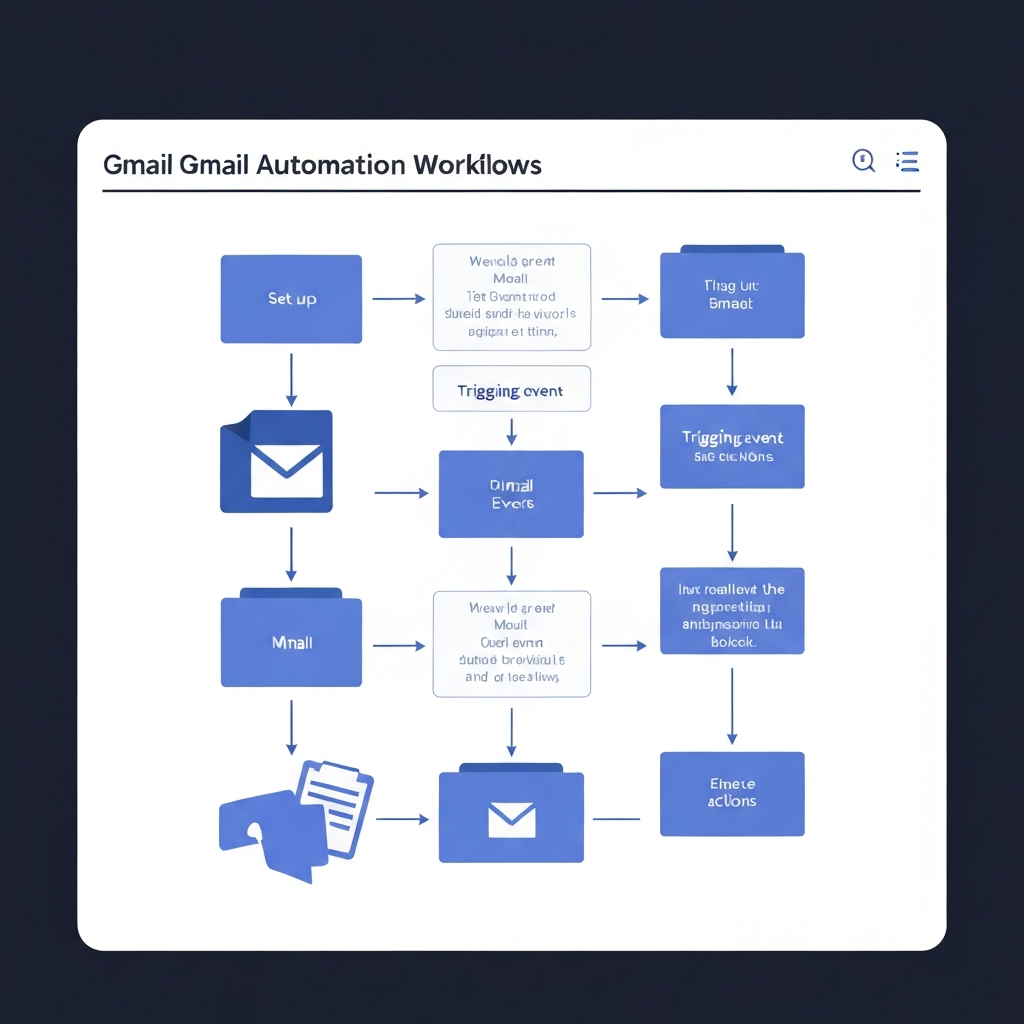
Once you've mastered Gmail's native features and basic AI assistance, you can explore more advanced strategies and integrations to create truly powerful automation workflows. These methods can connect Gmail with your other business tools, creating a seamless ecosystem.
Google Apps Script: Custom Automation Powerhouse
For highly specific needs, Google Apps Script (which uses JavaScript) offers unparalleled flexibility. It allows you to write custom scripts that interact with Gmail and other Google services (like Google Sheets, Calendar, Docs). For example:
- Automated Calendar Events: Create a script that, upon receiving an email with a specific subject or from a specific sender, automatically creates an event in your Google Calendar.
- Data Extraction to Sheets: Scripts can parse incoming emails to extract key information (like order details, contact info, or survey responses) and populate a Google Sheet. This is a powerful form of [AI email data extraction](/ai-email-data-extraction-turn-messages-into-insights) when combined with AI parsing capabilities.
- Custom Notifications: Trigger alerts in other platforms (like Slack) based on incoming emails.
While this requires some technical know-how or the help of a developer, it unlocks a level of automation tailored precisely to your unique business processes. This is where concepts like [automated agents revolutionizing your email workflow](/automated-agents-revolutionize-your-email-workflow) can truly empower your daily tasks.
Integrating Gmail with Your Essential Business Tools
The real power of modern email management lies in its integration with other critical business applications. This ensures data consistency and reduces manual data entry across platforms.
- Customer Relationship Management (CRM): Integrate Gmail with CRMs like Salesforce, HubSpot, or Zoho. This allows you to automatically log emails sent and received against contact records, create tasks based on email content, and track customer interactions seamlessly. For sales teams, this is indispensable for managing leads and client relationships.
- Project Management Tools: Connect Gmail to tools like Asana, Trello, or Monday.com. You can set up rules to automatically create tasks or projects from emails, assign them to team members, and track progress directly from your inbox. This is invaluable for remote workers and teams needing to manage multiple projects efficiently.
- Calendar and Scheduling: While basic, more advanced integrations can sync email communications with calendar events, automatically schedule follow-up meetings, or even suggest meeting times based on email content.
These integrations are key to optimizing your entire communication workflow. By linking your email to the tools you use daily, you create a more cohesive and efficient operational flow, reducing the friction between different software platforms.
Choosing the Right Tools: MailToPie and Other AI Solutions
The landscape of email automation is rapidly evolving, with new tools emerging to help professionals manage their inboxes more effectively. While Gmail's built-in features and Google Apps Script offer significant power, dedicated AI solutions can provide even more sophisticated capabilities, helping you tackle the challenge of inbox overload head-on.
The Role of AI in Modern Email Management
AI-powered tools go beyond simple rule-based automation. They leverage machine learning and natural language processing to understand the nuances of communication. This allows for:
- Intelligent Categorization: AI can learn to categorize emails based on content, intent, and sender relationship, even if you haven't explicitly set up a filter.
- Automated Summarization and Action Items: Tools can scan long email chains and extract key decisions, action items, and deadlines, presenting them in a digestible format. This is a significant leap in email productivity.
- Proactive Response Assistance: AI can suggest replies, rephrase sentences for tone, or even draft entire emails based on minimal input, drastically cutting down writing time.
- Spam and Phishing Detection: Advanced AI algorithms can be more effective than traditional methods at identifying and filtering out malicious or unwanted emails.
According to Jeeva AI, inbox automation tools can "reduce inbox overload," "save 3–5 hours weekly per user," and "ensure faster response time." They emphasize that "in 2025, inbox automation isn’t optional - it’s essential for staying ahead." [See Best Inbox Automation Tools for Gmail & Outlook in 2025](https://jeeva.ai/blog/best-inbox-automation-tools-2025).
Exploring AI Executive Assistants and Other Solutions
For professionals looking to maximize their efficiency, a dedicated ai executive assistant can be a game-changer. Tools like an ai executive assistant are designed to handle the complex demands of modern communication, acting as a smart layer over your inbox. They can help you:
- Prioritize incoming messages based on urgency and importance.
- Draft responses and suggest optimal wording.
- Summarize lengthy conversations.
- Manage your schedule and appointments derived from emails.
- Automate follow-ups and reminders.
Beyond comprehensive assistants, many specialized AI email tools focus on specific tasks. These might include AI writing assistants that help craft more persuasive or error-free emails, or tools focused on extracting specific data points from messages, such as contact details or order numbers. Gmelius offers insights into various automation ideas, highlighting that "automation potential is there to streamline your inbox without ever leaving your screen." [See 5 Gmail Automation Ideas to Streamline Your Inbox Today](https://gmelius.com/blog/5-simple-gmail-automation-ideas).
Making the Right Choice
When selecting an email management software or AI tool, consider these factors:
- Specific Needs: What are your biggest email pain points? Do you need help drafting, organizing, or managing follow-ups?
- Integration Capabilities: Does the tool integrate with your existing CRM, project management software, or other essential applications?
- Ease of Use: How steep is the learning curve? Can your team adopt it quickly?
- Security and Privacy: Ensure the tool adheres to strict data protection standards.
- Cost: Compare pricing models and ensure the ROI justifies the expense.
By carefully evaluating your needs and the available solutions, you can find the perfect tools to enhance your email productivity and significantly reduce the time spent managing your inbox.
Conclusion: Reclaiming Your Time with Gmail Automation
The journey from an overwhelmed inbox to an efficient communication hub is achievable through strategic gmail automation. We've explored how to leverage Gmail's powerful built-in features like filters and templates, harness the intelligence of AI for smarter email management, and integrate these tools into advanced workflows. By implementing these strategies, professionals across all industries can reclaim precious hours, reduce stress, and sharpen their focus on high-value activities.
Think about the impact: fewer hours spent sorting, categorizing, and responding to routine emails means more time for strategic planning, client engagement, product development, or simply achieving a better work-life balance. Whether you're an executive seeking to streamline executive communications, an entrepreneur bootstrapping your startup, a sales professional aiming to close more deals, or a remote worker striving for optimal efficiency, gmail automation offers tangible benefits.
Start small. Implement one new filter today. Create a template for your most common response. Explore an AI tool that promises to summarize your emails. The cumulative effect of these small changes can be profound. By proactively managing your inbox, you shift from being a slave to your emails to being the master of your communication, allowing you to truly manage inbox chaos and boost your overall email productivity. Embrace automation, and unlock your full potential.
Frequently Asked Questions