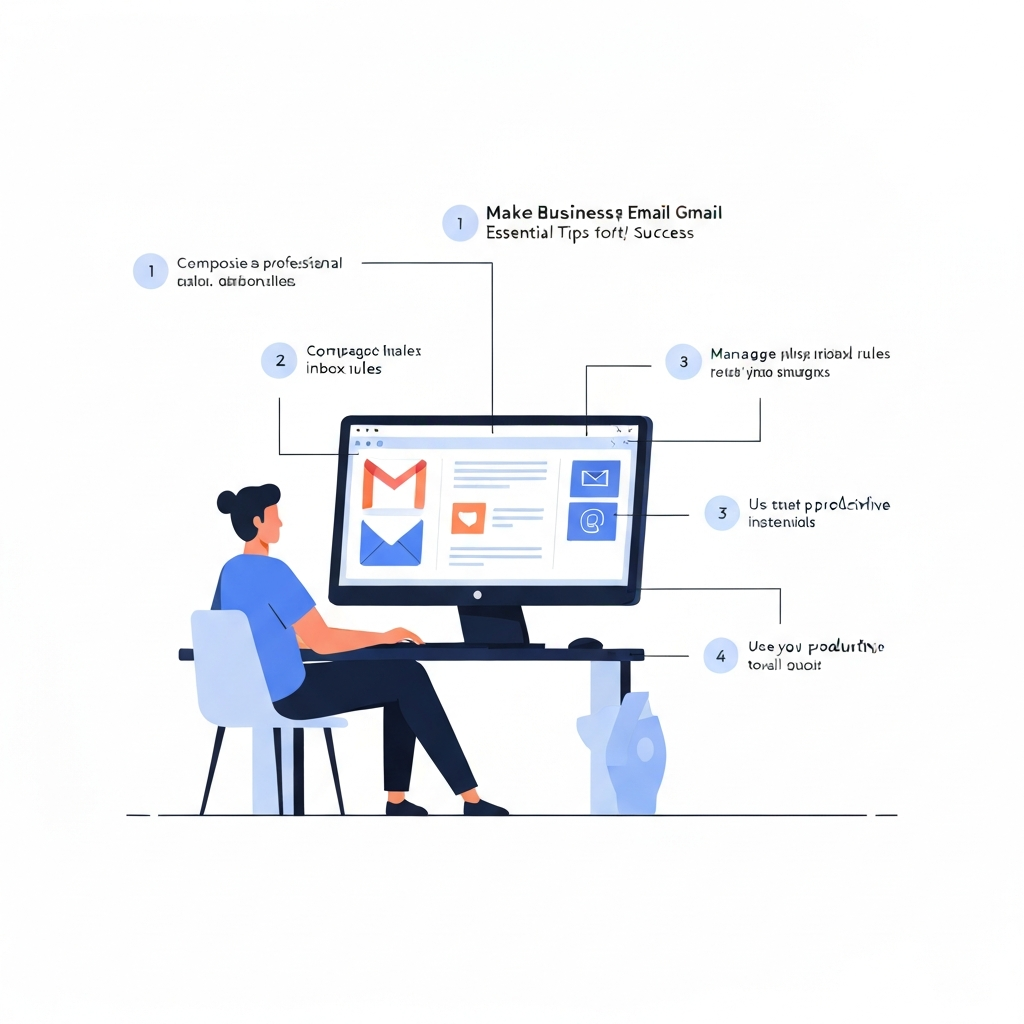
Make Business Email Gmail: Essential Tips for Success

In the fast-paced world of business, your inbox can feel like the ultimate bottleneck. Endless streams of emails demand attention, making it challenging to prioritize, respond promptly, and maintain clear communication. But what if your email could be a powerhouse of productivity rather than a source of stress? For many businesses, the answer lies in leveraging the robust capabilities of Gmail, especially when paired with a professional domain. Mastering how to make business email Gmail is a critical step towards enhancing efficiency, projecting professionalism, and gaining a significant competitive edge.
This article will guide you through transforming your Gmail experience from a cluttered chore into a streamlined engine for success. We'll cover everything from setting up a polished professional account to harnessing advanced features and AI-powered tools that can automate tasks, boost response times, and ensure your inbox works for you, not against you. Whether you're an executive, an entrepreneur, a sales professional, or a remote worker juggling high volumes, these essential tips will help you manage your digital communications like a pro.
Setting Up a Professional Gmail for Business: Choosing the Right Plan and Custom Domain
The first impression matters, and nothing says "unprofessional" quite like an email address like [email protected] for your business communications. A custom domain email address, such as [email protected], instantly lends credibility, builds trust, and reinforces your brand identity. It signals that you are serious about your business and invested in its image. Fortunately, making your business email work with Gmail is straightforward and accessible.
The most recommended and integrated way to achieve this is by using Google Workspace (formerly G Suite). Google Workspace provides a suite of professional tools, including custom Gmail accounts with your domain name, along with Google Drive, Calendar, Meet, and more, all managed under a single administrative console. This ensures seamless integration and a consistent professional experience across all your business tools. Setting up a gmail business account through Google Workspace involves purchasing a plan that suits your needs, verifying your domain name, and then configuring your email. This is the most robust solution for businesses looking to scale and maintain a professional online presence.
For those just starting or with very lean budgets, there are also methods to use a personal Gmail account to send and receive emails from a custom domain. While this can be a temporary workaround, it often lacks the seamless integration and advanced management features of Google Workspace. If you're exploring this route, resources like this YouTube tutorial on setting up a free business email and using it with Gmail can offer guidance. However, for long-term professionalism and efficiency, investing in Google Workspace to make business email Gmail is highly advisable. It's a foundational step in professionalizing your operations, much like having a dedicated business website. As Forbes notes, a professional email address boosts your business’s brand recognition and credibility.
Key considerations when setting up:
- Domain Name: Ensure you own a domain name for your business.
- Google Workspace Plan: Choose a plan (Business Starter, Standard, Plus, etc.) based on your storage needs, user count, and required features.
- Verification: You'll need to verify ownership of your domain with Google.
- MX Records: Configure your domain's Mail Exchanger (MX) records to point to Google's servers.
Getting a professional email address is a fundamental step, and integrating it with Gmail ensures you benefit from a familiar, powerful interface. For a deeper dive into the process, check out our guide on how to get a business email.
Essential Gmail Features for Business Productivity: Leveraging Labels, Filters, and Templates
Once your professional gmail business account is set up, it's time to unlock its full potential for productivity. Gmail offers a wealth of built-in features that, when used effectively, can drastically reduce clutter and improve your workflow. Mastering these tools is key to efficient email management.
Labels and Filters: Your Digital Filing System
Forget messy folders; Gmail's labels are far more flexible. You can apply multiple labels to a single email, categorizing it across different projects, clients, or departments without moving it. For example, an email could be labeled "Project X," "Client ABC," and "Urgent."
- Create Custom Labels: Organize your inbox by project, client, sender, or priority. Use color-coding for quick visual scanning.
- Automate with Filters: Filters are powerful rules that automatically apply labels, archive, delete, forward, or mark emails as read based on sender, subject, keywords, or size. For instance, you can set up a filter to automatically label all emails from your primary vendor as "Suppliers" and mark them as important. This significantly reduces manual sorting and ensures critical messages don't get lost.
Templates (Canned Responses): Speed Up Repetitive Emails
Do you find yourself typing the same responses to common questions or inquiries? Gmail's Canned Responses (now called Templates) feature allows you to save pre-written email snippets. When you need to send a common reply, simply insert the template instead of retyping. This is a massive time-saver, especially for sales teams, customer support, or HR departments.
- Enable Templates: Go to Settings > See all settings > Advanced > Templates, and enable it.
- Create & Insert: Compose an email, save it as a template, and then insert it into future emails with just a few clicks.
Stars and Importance Markers: Prioritize What Matters
Not all emails are created equal. Use Gmail's star system or the "Mark as Important" feature to visually flag messages that require immediate attention or follow-up. You can even customize your stars for different levels of importance.
Snooze: Reclaim Your Inbox Flow
The "Snooze" feature allows you to temporarily remove an email from your inbox and have it reappear at a later, more convenient time. This is perfect for messages you can't deal with right now but don't want to forget. It helps keep your inbox clean while ensuring nothing slips through the cracks.
By strategically using these built-in tools, you can transform your Gmail into an organized, efficient communication hub. For more on decluttering, explore tips on inbox cleanup.
Mastering Your Inbox: Strategies for Efficient Email Management and Reduced Clutter
Even with Gmail's robust features, the sheer volume of business emails can be overwhelming. Implementing smart strategies for handling your inbox is crucial for maintaining productivity and mental clarity. The goal is to move from being reactive to proactive in your email management.
Embrace the "Inbox Zero" Philosophy (or a variation)
While achieving true "Inbox Zero" daily might seem unrealistic for some, the underlying principle is sound: process your emails rather than just letting them pile up. This means making a decision for every email you open: Delete it, Delegate it, Respond to it (if it takes less than 2 minutes), or Defer it (schedule it for later). The aim is to have an inbox that reflects actionable items, not a never-ending to-do list.
Batch Your Email Checks
Constant interruptions from email notifications kill focus and deep work. Instead of checking your email every few minutes, schedule specific times throughout the day to process your inbox. For example, check emails first thing in the morning, after lunch, and before you finish work. This allows for concentrated periods of focused work without constant digital distractions.
Unsubscribe Aggressively
Sign up for newsletters or marketing emails sparingly. For those you no longer find valuable, take the time to unsubscribe. Each unnecessary email adds to the noise and takes up precious mental bandwidth and inbox space. Many email clients, including Gmail, will offer an unsubscribe link prominently at the top of promotional emails.
The Power of Quick Replies and Delegation
If an email can be answered in under two minutes, do it immediately. For tasks that require more time, either delegate them to the appropriate team member or schedule time in your calendar to handle them. This prevents emails from lingering in your inbox, acting as a constant reminder of unfinished tasks.
Utilize Search Effectively
Gmail's search functionality is incredibly powerful. Instead of relying solely on folders and labels, become proficient with search operators to quickly find any email, attachment, or conversation. You can search by sender, recipient, keywords, date range, whether it has attachments, and much more. This can save significant time compared to manual sifting.
By adopting these strategic habits, you can significantly reduce inbox clutter and reclaim your time, leading to more effective communication and greater overall productivity. This proactive approach is fundamental to mastering your business inbox organization.
Gmail Integrations: Connecting with Other Business Tools for a Streamlined Workflow
Gmail doesn't exist in a vacuum. Its true power for professionals is amplified when integrated with other essential business tools. By connecting Gmail with your existing software stack, you can create a seamless workflow that eliminates data silos and reduces the need to switch between multiple applications.
Google's Native Ecosystem
If you're using Google Workspace, the integrations are naturally robust:
- Google Calendar: Easily create events from emails, view your schedule alongside your inbox, and accept/decline invitations without leaving Gmail.
- Google Drive: Attach files from Drive directly to emails, and share documents with granular permissions. Recipients can view or edit based on your settings, reducing the need for large email attachments.
- Google Meet: Initiate or join video conferences directly from your inbox, making collaboration quick and effortless.
Third-Party Integrations
The real magic happens when you connect Gmail with specialized business applications. Many popular tools offer direct integrations or work seamlessly via add-ons:
- CRMs (Customer Relationship Management): Integrate with platforms like Salesforce, HubSpot, or Zoho CRM to log email communications against customer records automatically. This gives your sales and support teams a complete view of customer interactions.
- Project Management Tools: Connect with Asana, Trello, or Monday.com to create tasks directly from emails, assign them to team members, and track progress.
- Communication Platforms: Integrate with Slack or Microsoft Teams to easily share email content or create channels for specific discussions.
These integrations streamline processes, reduce manual data entry, and ensure that information flows efficiently between your communication channels and your core business systems. This holistic approach to your tools is part of choosing the best email for business solutions that support your entire operation.
AI-Powered Email Management with MailToPie: Automating Tasks and Enhancing Efficiency
While Gmail's features are powerful, the advent of Artificial Intelligence (AI) is revolutionizing how we handle email. AI-powered tools can automate repetitive tasks, extract key information, and even predict your needs, taking your productivity to an entirely new level. In today's fast-paced business environment, leveraging advanced AI solutions is no longer a luxury, but a necessity. Tools like an ai executive assistant can help streamline your workflow by automating repetitive tasks, summarizing lengthy email threads, and even drafting responses, freeing up valuable time for strategic thinking and client engagement.
AI can significantly enhance your AI email productivity in several ways:
- Automated Summarization: Long email chains can be daunting. AI can condense them into concise summaries, allowing you to grasp the main points quickly without reading every single message.
- Intelligent Drafting and Response Generation: AI can help draft emails from scratch or suggest replies based on the context of the conversation, drastically reducing the time spent composing messages. This is invaluable for busy professionals who need to maintain a high volume of communication.
- Smart Prioritization and Categorization: Beyond basic filters, AI can analyze the content and sentiment of emails to predict urgency and importance, helping you focus on what truly matters. It can also intelligently categorize emails into custom folders or labels based on nuanced understanding.
- Task Automation: AI can identify action items within emails and automatically create tasks in your to-do list or calendar, or even trigger other automated workflows.
- Sentiment Analysis: For customer-facing roles, AI can analyze the sentiment of incoming emails, allowing you to gauge customer satisfaction or identify potential issues proactively.
By integrating AI tools with your gmail business account, you can automate the mundane, accelerate responses, and gain deeper insights from your communications. This not only boosts individual productivity but also contributes to better team collaboration and faster business operations. For professionals looking to amplify their capabilities, exploring an AI assistant for business is a smart move. Furthermore, tools that help me write an email using AI can significantly speed up your response times, directly impacting your bottom line.
Consider platforms that offer advanced AI capabilities to manage your email communications more effectively. These tools are designed to work alongside your existing email client, enhancing its functionality and turning your inbox into a highly efficient command center. This is where the future of email productivity tools lies.
Competitive Edge Through Email Superiority: How Effective Email Management Impacts Business Success
In today's hyper-competitive business landscape, efficiency is currency. How you manage your email communications can be a subtle yet powerful differentiator that directly impacts your bottom line and market position. Superior email management, exemplified by a well-optimized Gmail setup and enhanced by AI tools, can provide a significant competitive edge.
Faster Response Times, Higher Conversion Rates
Businesses that respond to inquiries quickly and professionally are more likely to convert leads into customers. A streamlined inbox and AI-assisted response generation mean you can address potential clients or customers faster than competitors who are bogged down by email overload. This speed directly translates into lost opportunities for slower-moving rivals. The ROI of email reply speed is undeniable.
Enhanced Customer Satisfaction and Loyalty
Prompt, clear, and personalized communication is a cornerstone of excellent customer service. When customers feel heard and receive timely responses, their satisfaction increases, fostering loyalty and positive word-of-mouth referrals. A disorganized inbox can lead to missed messages, delayed responses, and frustrated customers, pushing them towards competitors.
Improved Professional Image and Brand Credibility
As discussed, a professional business email address like [email protected] is essential. Beyond the address itself, the professionalism of your email content, tone, and timely delivery reinforces your brand's credibility. Consistent, well-managed communication builds trust and positions your business as reliable and competent.
Increased Operational Efficiency and Reduced Errors
When emails are properly organized, filtered, and managed, fewer mistakes are made. Important client requests aren't missed, deadlines are met, and tasks are delegated effectively. This operational efficiency across the board means less wasted time, fewer costly errors, and a more productive workforce. AI-powered tools further reduce human error in drafting and data entry.
Strategic Decision-Making Through Better Insights
An organized inbox, especially one that leverages AI for analysis and summarization, can provide clearer insights into customer needs, market trends, and internal team performance. This data-driven approach allows for more informed and strategic decision-making, giving you a crucial advantage over competitors who are struggling to make sense of their communication data.
In essence, mastering how to make business email Gmail and optimize it with advanced strategies and AI is not just about managing messages; it's about building a more responsive, credible, and efficient business that consistently outperforms the competition. Your email is a critical touchpoint; ensuring it's a strength, not a weakness, is paramount for sustained success.
Security and Best Practices for Business Gmail: Protecting Your Communications
While Gmail offers robust security features, protecting your business communications requires a proactive approach and adherence to best practices. As your gmail business account becomes central to your operations, safeguarding it is paramount.
Enable Two-Factor Authentication (2FA)
This is non-negotiable for any business account. 2FA adds an extra layer of security by requiring a second form of verification (like a code from your phone) in addition to your password. This dramatically reduces the risk of unauthorized access, even if your password is compromised.
Use Strong, Unique Passwords
Avoid common, easily guessable passwords. Use a combination of uppercase and lowercase letters, numbers, and symbols. Consider using a password manager to generate and store complex passwords for all your accounts, including your gmail business account.
Be Vigilant Against Phishing and Scams
Phishing emails are designed to trick you into revealing sensitive information or clicking malicious links. Always scrutinize emails asking for personal data, financial information, or login credentials. Hover over links before clicking to see the actual URL, and be suspicious of urgent requests or unusual sender addresses. Google's built-in phishing detection is excellent, but user awareness is your first line of defense.
Regularly Review Account Activity and Permissions
Periodically check your account's security settings for any suspicious login activity or unauthorized connected apps. Ensure that only necessary third-party applications have access to your account and revoke access for any that are no longer in use.
Educate Your Team
If you have a team, ensure everyone understands these security best practices. Regular training on phishing awareness and secure email habits is crucial for maintaining the overall security posture of your business communications. Exclaimer's guide on opening a Gmail account for a company often touches upon these essential security considerations.
By prioritizing security and implementing these best practices, you can ensure that your business communications remain confidential, secure, and protected from potential threats.
Advanced Tips and Tricks: Unlocking Hidden Gmail Functionalities for Peak Productivity
Beyond the core features, Gmail is packed with advanced functionalities that can further boost your productivity and refine your email management tips. Mastering these can turn everyday email tasks into lightning-fast operations.
Keyboard Shortcuts
If you spend a lot of time in Gmail, learning keyboard shortcuts can save hours each week. Enable keyboard shortcuts in Settings > See all settings > Advanced. Common shortcuts include 'c' to compose, 'r' to reply, 'a' to reply all, 'f' to forward, '/' to search, and 'k' to move to the next conversation. Press '?' to see a full list.
Smart Compose and Smart Reply
Gmail's built-in AI features, Smart Compose and Smart Reply, offer predictive text suggestions as you type and quick reply options based on email content. These features learn your writing style and can significantly speed up composing and responding to emails, enhancing your AI email productivity.
Nudges
Gmail can "nudge" you to follow up on emails you've sent that haven't received a reply, or to respond to emails you might have missed. This feature automatically brings older, unaddressed emails back to the top of your inbox, ensuring important conversations don't get forgotten.
Send and Archive
When you send a reply, instead of just sending it and leaving the original message in your inbox, use "Send & Archive." This sends your reply and automatically archives the original conversation, keeping your inbox clean while ensuring you still have a record of the exchange.
Undo Send
Ever hit send and immediately realized you made a mistake? Gmail's "Undo Send" feature gives you a short window (adjustable in settings) to recall an email after it's been sent. This is a lifesaver for catching typos or errors before they reach the recipient.
Customizable "Send and Reply" Behavior
In Settings > General, you can customize whether clicking "Reply" opens the reply in the same window or a new one, and whether it shows the oldest or newest message first in a conversation.
These advanced tips, combined with the foundational features and AI enhancements, empower you to truly master your Gmail inbox. For those looking to set up a professional email, resources like the DragApp guide on creating a business Gmail account can be very helpful.
Conclusion
Transforming your business email from a source of overwhelm into a powerful productivity hub is entirely achievable with Gmail. By strategically setting up a professional gmail business account with a custom domain, leveraging its essential features like labels and templates, and adopting efficient inbox management strategies, you lay a strong foundation for success. Integrating Gmail with other business tools further streamlines your workflow, creating a cohesive operational environment.
The real game-changer, however, comes with embracing AI. Tools like an ai executive assistant can automate tedious tasks, accelerate response times, and provide deeper insights, significantly boosting your AI email productivity and giving you a competitive edge. Remember, effective email management isn't just about organization; it's about enhancing your business's responsiveness, credibility, and overall efficiency.
Start implementing these tips today. Explore Google Workspace for your professional needs, dive into the advanced features of Gmail, and consider integrating AI solutions. By making business email Gmail work smarter for you, you're not just managing your inbox – you're investing in your business's future success and ensuring efficient email communication that drives results.
Frequently Asked Questions