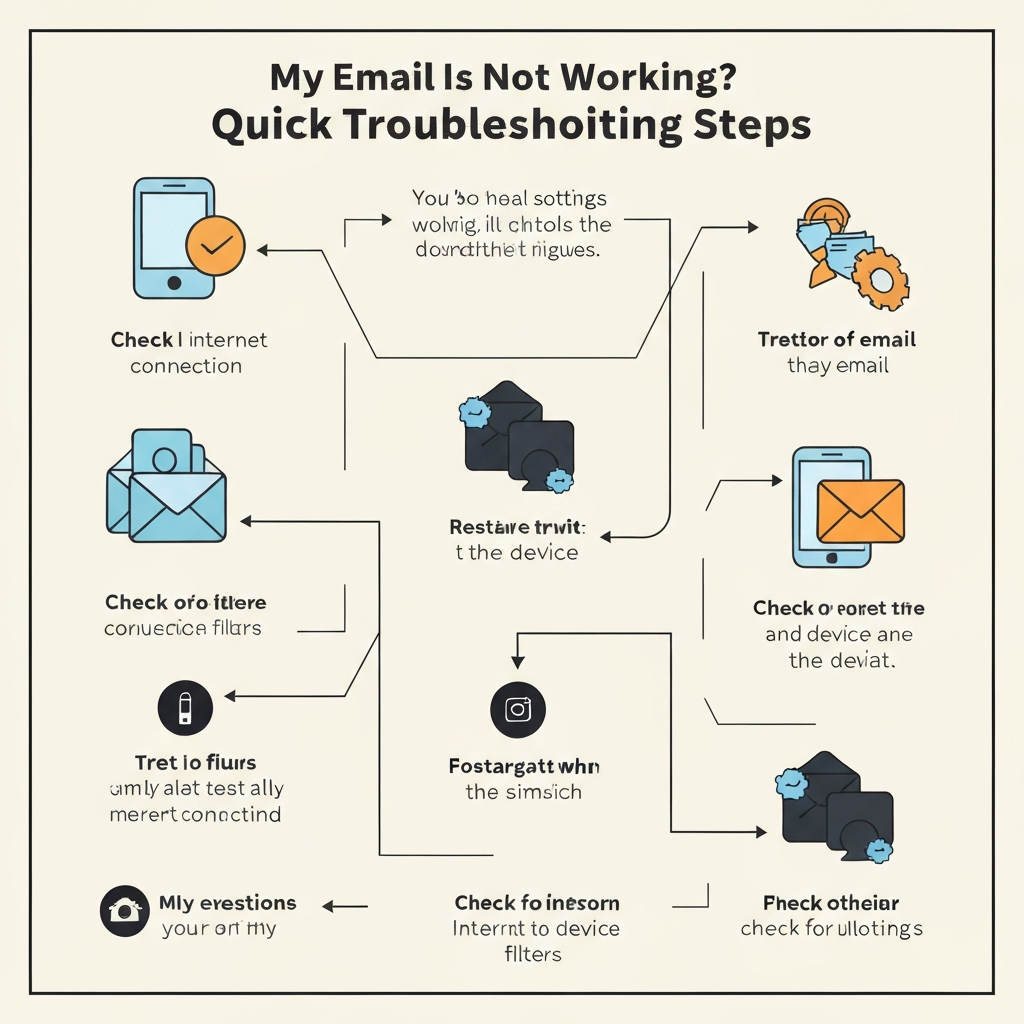
My Email Is Not Working? Quick Troubleshooting Steps

That sinking feeling. You're expecting an important email, need to send a crucial message, or are simply trying to check your daily updates, and then it hits you: my email is not working. It's a common, yet incredibly frustrating, problem that can disrupt your workflow, business operations, and personal communication. In today's connected world, reliable email access is not just a convenience; it's a necessity. But don't panic! Before you call support or resign yourself to days of missed messages, this comprehensive guide is here to help you diagnose and fix the most common email issues. We'll walk you through a series of practical troubleshooting steps, starting with the basics and moving towards more complex solutions, empowering you to get your inbox back up and running quickly.
Step 1: The Foundation - Basic Checks for Connectivity and Credentials
When your email service seems to have gone offline, the first and most crucial step is to eliminate the simplest potential causes. Often, the solution is surprisingly straightforward.
Check Your Internet Connection
This might seem obvious, but it's the most frequent culprit. If your internet isn't working, your email client or webmail certainly won't connect.
- Browse the Web: Try opening a few different websites in your browser. If they don't load, the problem is with your internet connection, not your email.
- Check Router/Modem: Ensure your router and modem are powered on and functioning correctly. Sometimes, a simple restart of these devices can resolve connectivity issues.
- Wi-Fi vs. Wired: If you're on Wi-Fi, try connecting via an Ethernet cable if possible, or vice-versa, to rule out wireless interference.
Restart Your Devices
A classic IT solution for a reason. Rebooting your computer, smartphone, or tablet can clear temporary glitches in the operating system or network stack that might be interfering with your email application.
Verify Your Login Credentials
It's easy to mistype your username or password, especially if you're in a hurry or if your password has recently changed.
- Double-Check Spelling: Ensure there are no typos in your email address or password.
- Caps Lock: Make sure the Caps Lock key is not accidentally enabled.
- Password Manager: If you use a password manager, try manually typing the password to ensure it's being autofilled correctly and that the stored password is up-to-date.
- Reset Password: If you suspect you've forgotten your password, use the "Forgot Password" link on your email provider's login page to reset it.
Test on Multiple Platforms
To help isolate the problem, try accessing your email from a different device or platform.
- Webmail vs. App: If you're using an email client (like Outlook, Apple Mail, or a mobile app), try logging into your email via your provider's webmail interface (e.g., Gmail.com, Outlook.com). If webmail works, the issue is likely with your app's settings or the app itself.
- Different Device: Try accessing your email on a smartphone if you're using a desktop, or vice-versa.
If these basic checks don't resolve the issue, it's time to look at more specific problems related to sending or receiving emails.
Step 2: Troubleshooting Email Sending Issues
When you can access your inbox but can't send messages, it's incredibly disruptive. Here are common reasons why your email might not be sending and how to fix them.
Check the Recipient's Email Address
This is one of the most common reasons for sending failures. A single typo can prevent your message from reaching its destination.
- Verify Spelling: Carefully re-read the recipient's email address.
- Domain Name: Ensure the domain name (e.g., @example.com) is correct.
- Use Autocomplete Sparingly: While convenient, email client autocomplete can sometimes suggest outdated or incorrect addresses. It's best to verify the address from a trusted source if possible. As noted by Computer1inc, meticulously verifying the recipient's email address for typographical errors is a crucial first step.
Examine Your Outbox
Emails that fail to send are often stuck in the 'Outbox' folder. If you see messages there:
- Check for Errors: Select the stuck email and look for any error messages or indicators.
- Resend: Try moving the email out of the outbox (sometimes just opening and re-saving helps) or manually triggering a resend.
- Check Attachments: Large attachments can cause sending delays or failures. Ensure your attachments comply with your email provider's size limits.
Review Outgoing Server (SMTP) Settings
Your email client needs to connect to an outgoing mail server (SMTP) to send messages. Incorrect settings can cause sending failures.
- Server Name: Ensure the SMTP server name is correct (e.g., smtp.yourdomain.com, smtp.gmail.com).
- Port and Encryption: Verify the correct port number (commonly 465 or 587) and SSL/TLS encryption settings. Your email provider's help documentation will list these.
- Authentication: Ensure your client is set to authenticate using your email username and password for the outgoing server.
If you're consistently struggling with sending emails, consider exploring tools that can help you boost sales email velocity, ensuring your critical messages get through efficiently.
Step 3: Troubleshooting Email Receiving Issues
The flip side of 'my email is not working' is not receiving emails you expect. This can be just as problematic.
Check Your Spam/Junk Folder
This is the most common reason people think they aren't receiving emails. Legitimate messages can sometimes be misclassified as spam.
- Scan Regularly: Make it a habit to check your spam/junk folder.
- Mark as Not Spam: If you find a legitimate email, mark it as "Not Spam" or "Not Junk" to help your email provider learn and improve future filtering.
- Whitelist Senders: Add important contacts to your email's whitelist or safe sender list.
Is Your Inbox Full?
Most email services have storage limits. If your inbox is full, you won't be able to receive new emails.
- Check Storage Usage: Look for a "Storage" or "Quota" indicator in your email settings.
- Delete Old Emails: Archive or delete old emails, especially those with large attachments.
- Empty Trash/Deleted Items: Remember that emails in your trash folder still count towards your storage quota until permanently deleted.
Review Your Filters and Rules
You might have set up filters or rules in the past that are now inadvertently diverting or deleting incoming emails.
- Access Rules Settings: Navigate to your email account's settings and look for "Filters," "Rules," or "Forwarding."
- Disable or Modify: Temporarily disable all rules to see if emails start arriving. If they do, re-enable them one by one to identify the problematic rule.
Check for Blocked Senders and Forwarding
Similar to filters, accidentally blocking a sender or setting up an incorrect forwarding address can stop emails from reaching you.
- Blocked List: Review your list of blocked senders and remove anyone you expect to hear from.
- Forwarding Settings: Ensure no email forwarding is active unless intended. If it is, verify the forwarding address is correct.
Sender-Side Issues
Sometimes, the problem isn't on your end at all. The sender might be experiencing issues.
- Bounce-Back Messages: If the sender received a bounce-back message, it usually contains clues about why the email failed (e.g., invalid address, mailbox full on their end).
- Ask the Sender: Politely ask the sender to confirm they are sending to the correct address and check for any error messages they might have received. As Microsoft 365 documentation suggests, it can be challenging to determine the cause when users report they aren't receiving email, and looking at various troubleshooting scenarios is key.
If you're overwhelmed by the volume of emails, consider how to master your inbox more effectively.
Step 4: Addressing Login and Account Access Problems
If you're unable to log in to your email account at all, it's a significant roadblock. Let's troubleshoot common access issues.
Password Issues Revisited
We touched on this in basic checks, but account login problems are often password-related.
- Confirm Password: Reiterate the importance of an accurate password.
- Account Lockout: Many providers temporarily lock accounts after a certain number of failed login attempts to prevent unauthorized access. You might need to wait a specific period or go through an account recovery process. Microsoft Support mentions that accounts can be temporarily blocked due to unusual sign-in activity.
Two-Factor Authentication (2FA) / Multi-Factor Authentication (MFA)
If you have 2FA/MFA enabled, ensure you are correctly completing the second step.
- Code Entry: Verify the code from your authenticator app or SMS is entered promptly and correctly.
- Backup Codes: Keep backup codes in a safe place in case your primary 2FA method is unavailable.
- Device Sync: Ensure the time on your device and your authenticator app are synced, as time differences can cause code mismatches.
Browser Issues (for Webmail)
Sometimes, cached data or browser extensions can interfere with webmail logins.
- Clear Cache and Cookies: In your browser settings, clear the cache and cookies for your email provider's website.
- Incognito/Private Mode: Try logging in using an incognito or private browsing window. This bypasses most cache and extension issues.
- Disable Extensions: Temporarily disable browser extensions, especially those related to security or privacy, to see if one is blocking access.
Account Verification or Suspension
Your email provider might require you to verify your account ownership, especially if they detect suspicious activity or if the account has been inactive.
- Check Email/SMS: Look for verification emails or SMS messages from your provider.
- Review Provider Policies: Understand your provider's terms of service regarding account activity and potential suspensions.
Step 5: Checking Email App and Server Settings
If webmail works but your email application (desktop client or mobile app) doesn't, the issue likely lies in the application's configuration or its connection to the mail servers.
Ensure Your Email Client is Updated
Outdated email clients can have compatibility issues with modern email protocols or server changes.
- Check for Updates: Go to your email client's settings or help menu and check for available updates. Install any that are pending.
- Consider a New Client: If your client is very old, it might be time to switch to a more modern and reliable best mail app.
Verify Server Settings (IMAP/POP3/SMTP)
Incorrect server settings are a very common cause of persistent email problems within an application. These settings tell your client how to communicate with your email provider's servers.
- Provider Documentation: The most reliable source for these settings is your email provider's official help documentation. Search for "[Your Email Provider] IMAP settings" or "[Your Email Provider] POP3 settings."
- Incoming Server (IMAP/POP3):
- Server Name: e.g., imap.gmail.com, mail.outlook.com
- Port: e.g., 993 (IMAP SSL), 995 (POP3 SSL)
- Encryption: Usually SSL/TLS
- Outgoing Server (SMTP):
- Server Name: e.g., smtp.gmail.com, smtp.outlook.com
- Port: e.g., 465 (SSL) or 587 (TLS)
- Encryption: Usually SSL/TLS
- Authentication: Should be enabled, often using the same credentials as the incoming server.
- Common Pitfalls: As highlighted by Duocircle, ensuring the incoming and outgoing mail servers are correctly set, along with the right port numbers, is critical. Incorrect configuration is a frequent cause of issues.
Check Account Synchronization
Sometimes, the email client might be having trouble syncing with the server, leading to a lag in receiving new emails or sending existing ones.
- Manual Sync: Look for a "Send/Receive All Folders" or "Sync" button in your email client.
- Account Settings: In your account settings, check how often the client is set to check for new mail. Setting it to "as items arrive" or a short interval (e.g., 1-5 minutes) is usually best.
- Re-add Account: If all else fails, try removing your email account from the client and then re-adding it. This forces a fresh configuration.
Firewall and Antivirus Interference
Occasionally, your computer's firewall or antivirus software might mistakenly block your email client from connecting to the internet or email servers.
- Temporarily Disable: As a test, try temporarily disabling your firewall and antivirus software. If your email starts working, you'll need to configure your security software to allow your email client.
- Add Exception: Add your email client as an exception or trusted application in your firewall and antivirus settings.
For business users, selecting the right email servers providers can also prevent many common problems.
Step 6: Identifying and Resolving Common Error Messages
When your email client or webmail displays an error message, it's often a direct clue to the problem. Understanding these messages can significantly speed up your troubleshooting.
"Cannot Connect to Server" / "Connection Timed Out"
- Possible Causes: No internet connection, server is down, incorrect server settings (name, port, SSL), firewall blocking connection.
- Solutions: Check internet, verify server settings against provider documentation, temporarily disable firewall/antivirus, check your email provider's status page for outages.
"Authentication Failed" / "Invalid Credentials" / "Login Failed"
- Possible Causes: Incorrect username or password, Caps Lock on, account locked, incorrect security settings (e.g., for older apps not supporting modern auth).
- Solutions: Double-check username/password, ensure Caps Lock is off, reset password, verify app-specific passwords if required by your provider (especially for Gmail/Outlook with 2FA).
"Message Too Large" / "Attachment Size Exceeded"
- Possible Causes: The file(s) you're trying to send exceed the maximum attachment size limit set by your email provider or the recipient's provider.
- Solutions: Compress files, use cloud storage links (like Google Drive, Dropbox, OneDrive) for large files instead of attaching them directly.
"Recipient Address Rejected" / "User Unknown" / "Mailbox Unavailable"
- Possible Causes: Typo in the recipient's email address, the recipient's email address no longer exists or is inactive, the recipient's inbox is full (less common for this specific error, but possible).
- Solutions: Re-verify the recipient's email address with them, ask them to check their inbox status.
"Mailbox Full" / "Quota Exceeded"
- Possible Causes: Your email storage limit has been reached.
- Solutions: Delete unnecessary emails (especially those with large attachments), empty your trash and spam folders, consider upgrading your storage plan if available.
As GeeksforGeeks points out, incorrect email configuration is a common problem that leads to errors.
When to Seek Further Help
You've gone through the steps, checked the basics, and delved into specific settings, but your email is still not working. It might be time to escalate the issue.
Escalation Points
- Email Provider Support: Your email provider (Gmail, Outlook.com, Yahoo, or your company's IT department for custom domains) is the ultimate authority. They can check for server-side issues, account-specific problems, or policy blocks you can't see.
- IT Department: If you're using a work or business email, your IT department is your primary resource.
- Device Manufacturer/App Developer: If the issue seems specific to a particular device or email client, their support might be relevant, though less common for general email service failure.
Information to Provide to Support
To get the fastest and most accurate help, be prepared to provide detailed information:
- Exact Error Message: Copy and paste the full error message if possible.
- Steps Already Taken: List all the troubleshooting steps you've already performed from this guide. This saves time and prevents redundant suggestions.
- When Did It Start?: Was it sudden, or has it been gradual? Did it coincide with any changes (software updates, password changes, new devices)?
- Email Account Type: Specify your email provider (e.g., Gmail, Outlook.com, custom domain @yourcompany.com).
- Email Client/App: Mention the specific software you're using (e.g., Outlook 365, Apple Mail, Gmail app on Android, web browser).
- Device and OS: Include your operating system (Windows 10, macOS Monterey, iOS 16, Android 13) and device type.
- Scope of the Problem: Does it affect only one device? One app? Sending only? Receiving only?
By providing this information, you empower support staff to diagnose your problem more efficiently, reducing frustration for everyone involved.
Conclusion: Getting Your Email Back on Track
Experiencing an issue where my email is not working can feel like a major setback. However, as this guide has shown, many common email problems have straightforward solutions. By systematically working through the steps—from checking your internet connection and credentials to diving into server settings and error messages—you can often resolve the issue yourself.
Remember, consistent email functionality is vital for productivity and staying connected. Tools like an ai executive assistant can help streamline your workflow, manage your communications, and offer advanced features that can even help preemptively identify and manage potential email-related issues, freeing you up to focus on your core tasks. For those looking to enhance their email management further, exploring solutions like a virtual assistant to master your inbox or leveraging a online assistant can significantly boost your overall productivity and help prevent future email headaches. Investing a little time in understanding your email system and utilizing productivity aids can save you significant time and stress in the long run.
Don't let email woes hold you back. Use this guide as your go-to resource, and get your inbox working for you again!
Frequently Asked Questions
